Church Volunteering is not trying to be an all-in-one church management platform. It does one thing well: volunteer rostering. Here is what is inside.
Dashboard
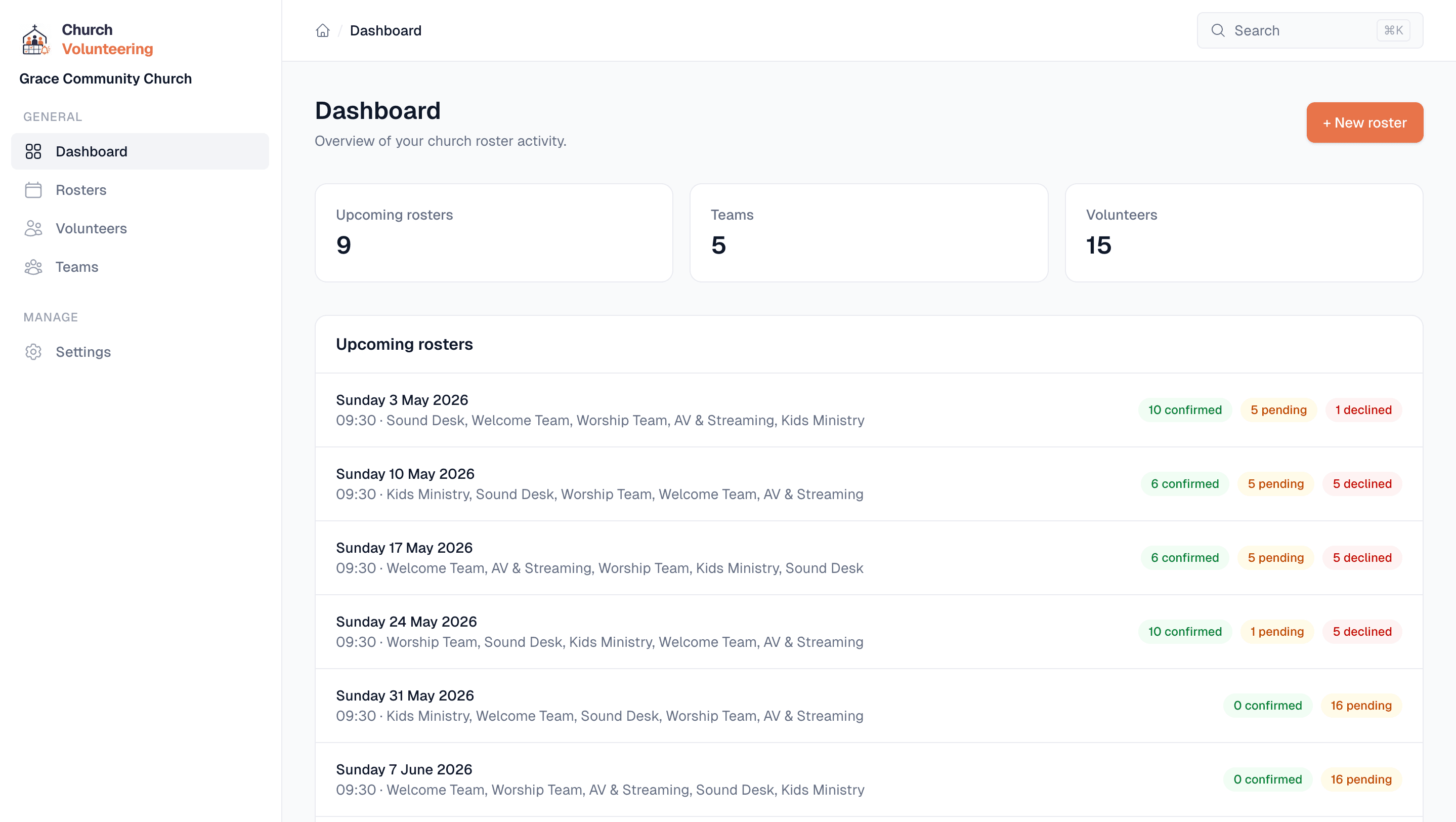
The dashboard shows you every upcoming roster, how many volunteers have confirmed, how many are still pending, and who has declined. No clicking through pages to piece it together.
If someone declines on Thursday, you will see it immediately. You can jump straight to the roster and assign a replacement before the weekend.
Teams
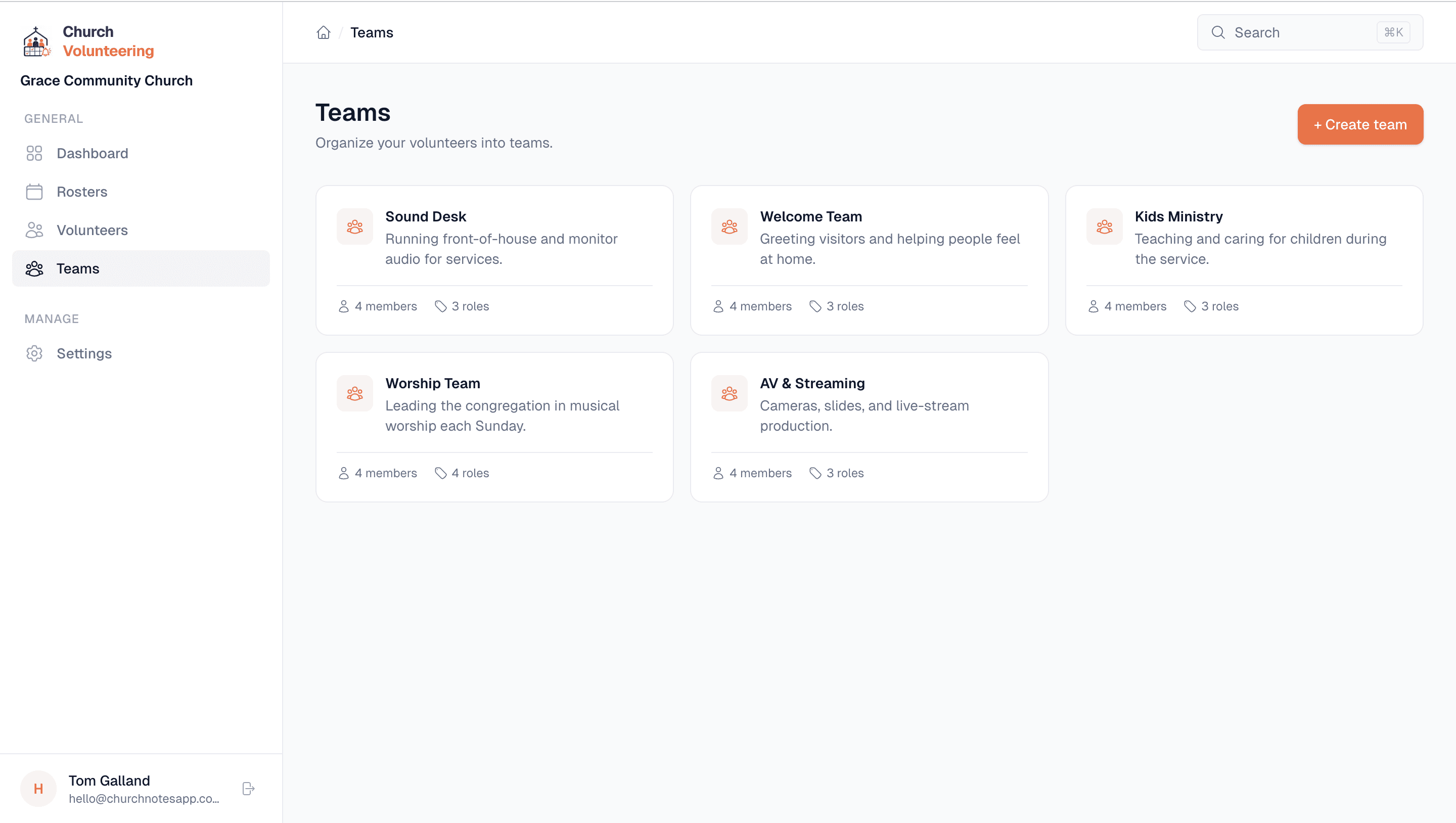
Create teams that match how your church actually works. Sound Desk, Welcome Team, Kids Ministry, Worship Team, Ushers, Parking. Whatever you call them, you can set them up here.
Each team has its own set of roles. The Sound Desk might need a FOH Engineer, Monitor Engineer, and Tech Director. The Welcome Team might just need Door Greeters and an Info Desk person. You define the roles that make sense.
Volunteers can be on multiple teams. If someone does both sound and worship, they show up in both places. When you are building a roster, you will see everyone who is available for that team.
Team detail
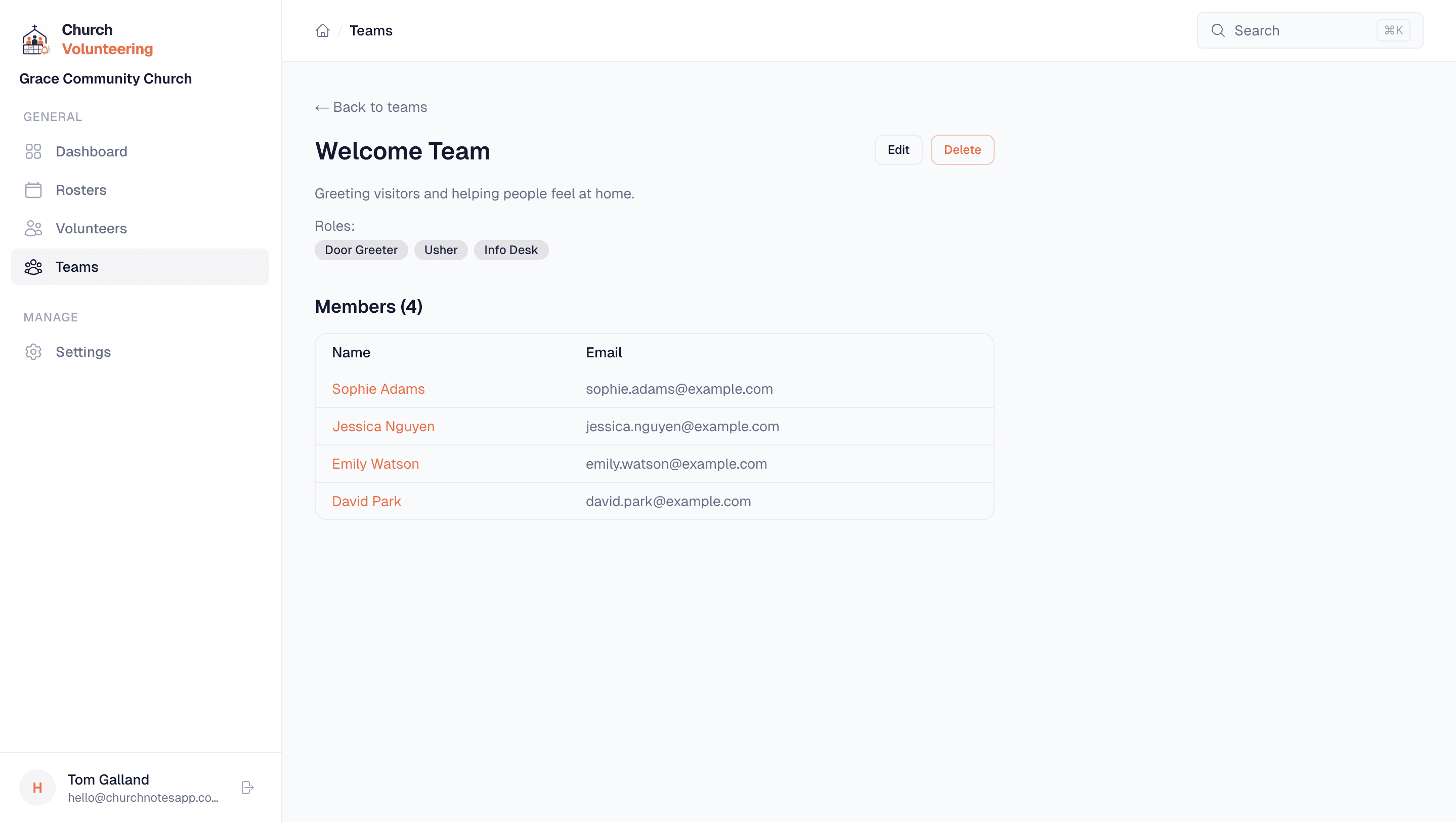
Click into any team and you will see every volunteer assigned to it, along with their roles. You can add or remove people, update roles, and see at a glance who is available for the next roster.
This is also where you manage the roles themselves. Need to add a new position? Remove one that no longer exists? It takes a few seconds. The roster builder will pick up the changes immediately.
Volunteer directory
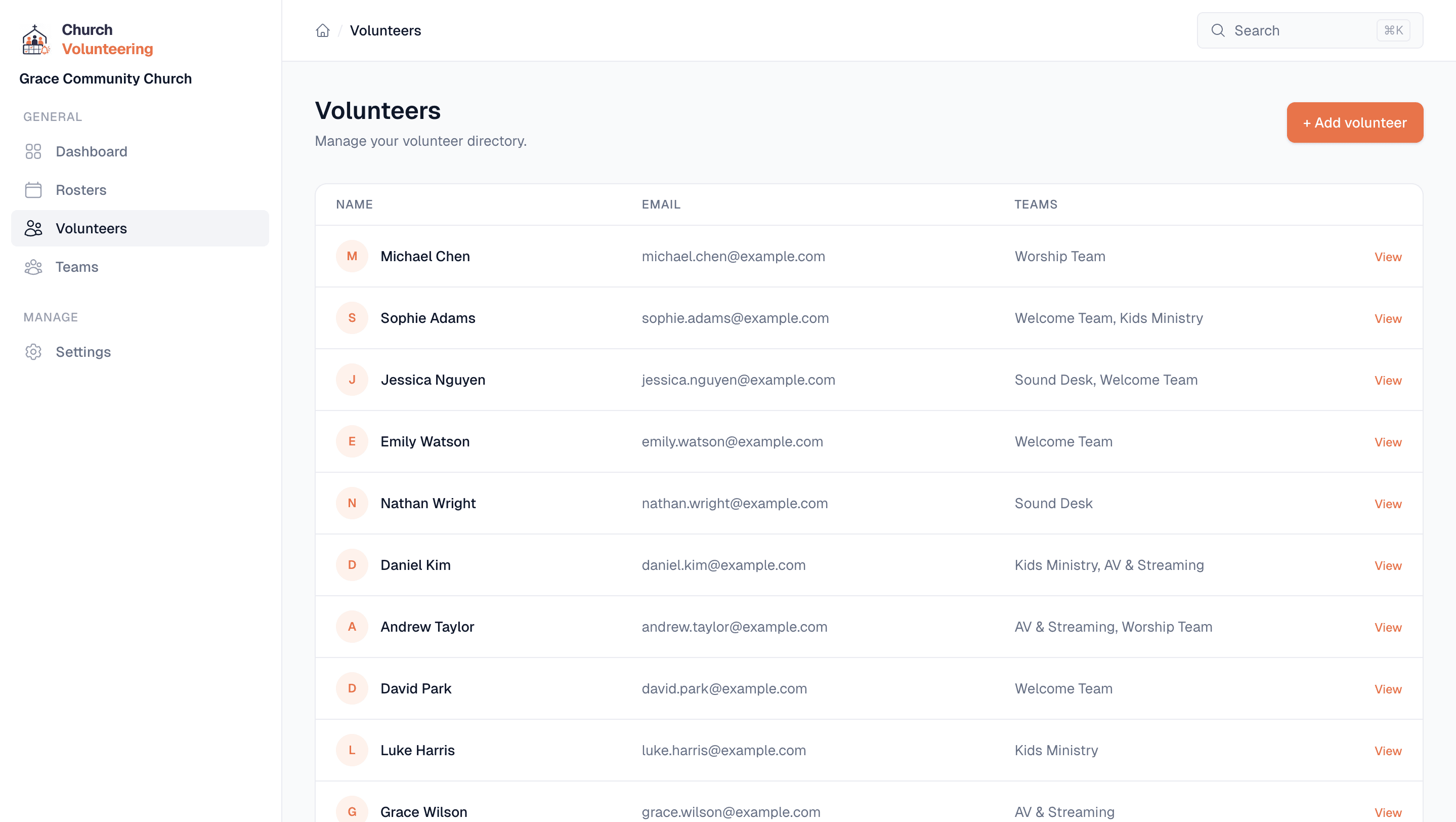
No more scrolling through phone contacts or searching old emails. Every volunteer is listed with their name, email, phone number, and which teams they serve on.
You can see how many times someone has been rostered and when they last served. Useful when you are trying to spread the load fairly and not burn out the same handful of people every month.
Adding a new volunteer takes about 10 seconds. Name, email, pick their teams. Done.
Volunteer profiles
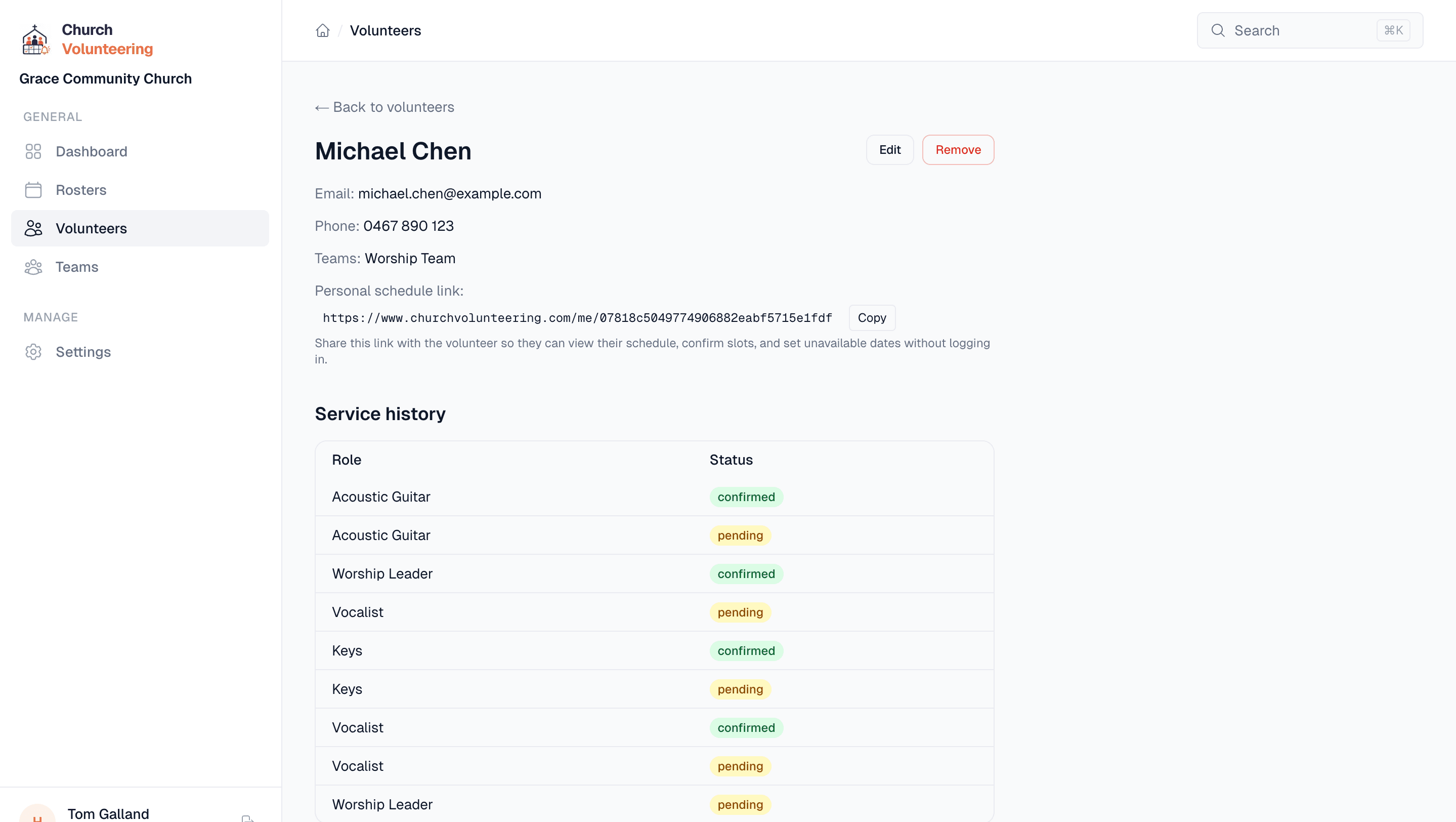
Each volunteer has their own profile page. You can see which teams they are on, their full service history, upcoming roster slots, and any notes you have added.
If someone tells you after church that they are going on holiday next month, you can add a note right there. When you are building the roster later, you will see it.
The service history shows every time they have been rostered, what role they played, and whether they confirmed or declined. Over time, this gives you a clear picture of who is reliable and who might need a conversation.
Roster builder
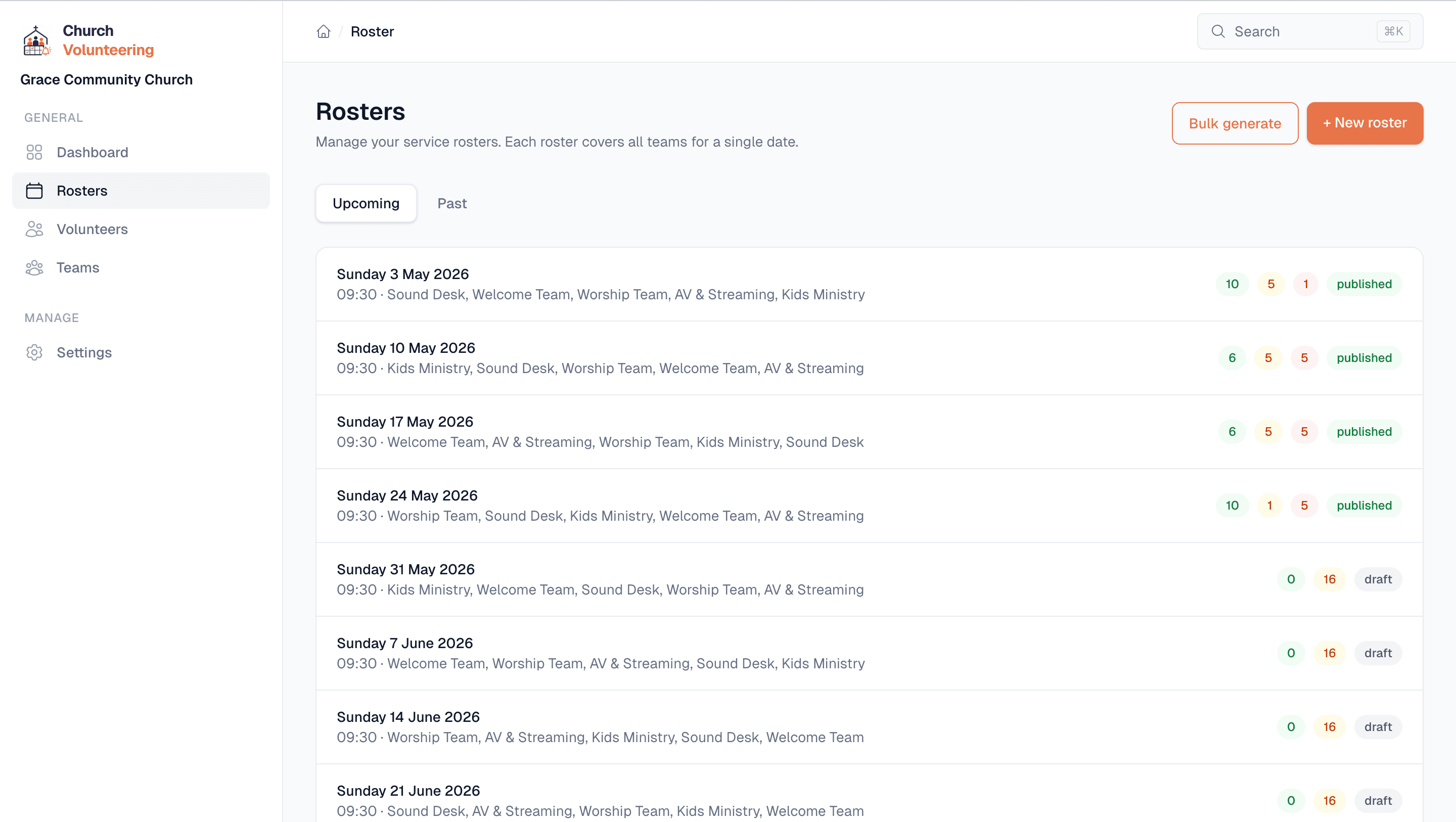
Pick a date and a service time. Select the teams you need for that service. Then assign volunteers to each role. You can see who is available and who has flagged themselves as unavailable.
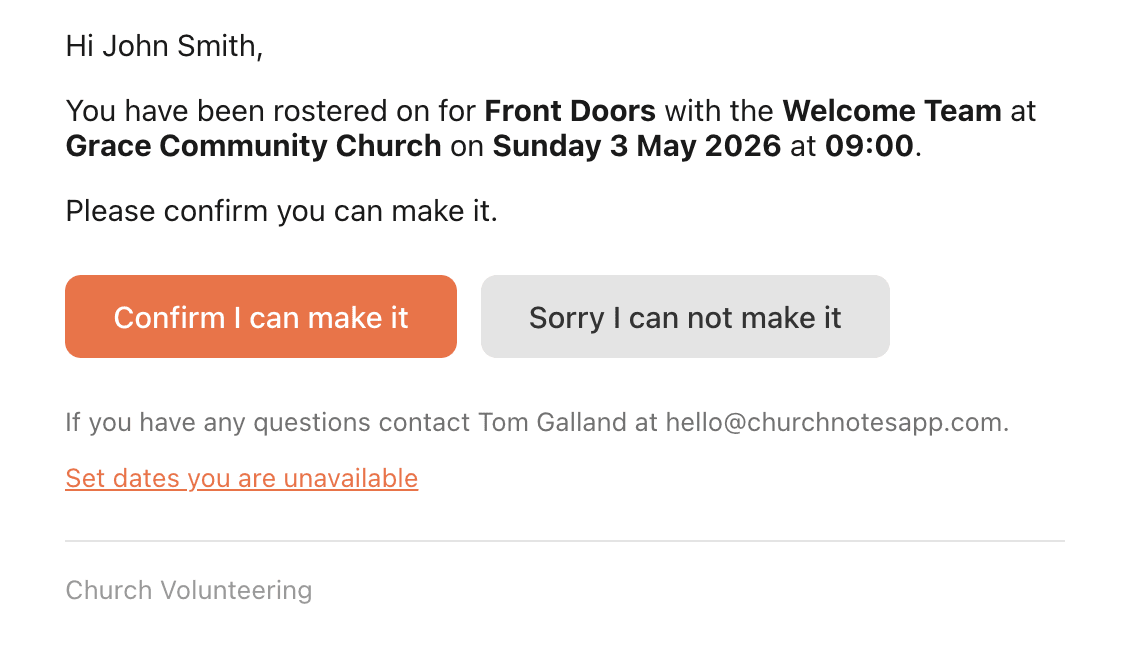
Once you are happy with the roster, publish it. Every volunteer gets an email immediately with their role, date, and time. They can confirm or decline with one click right from the email.
The roster page shows you the live status of every slot. Green for confirmed, yellow for pending, red for declined. You always know where things stand.
Reminders and confirmations
When a volunteer is rostered, they get an email straight away with their role and service details. Then another reminder 3 days before, and one more the day before.
Every email has two buttons: confirm and decline. The volunteer clicks one and they are done. No app to download, no account to create, no password to remember. It works for the 75-year-old greeter and the 16-year-old on the sound desk.
If someone declines, you get notified immediately so you can find a replacement. If they confirm, it shows up on your dashboard. You do not have to ask anyone anything.
Volunteer view
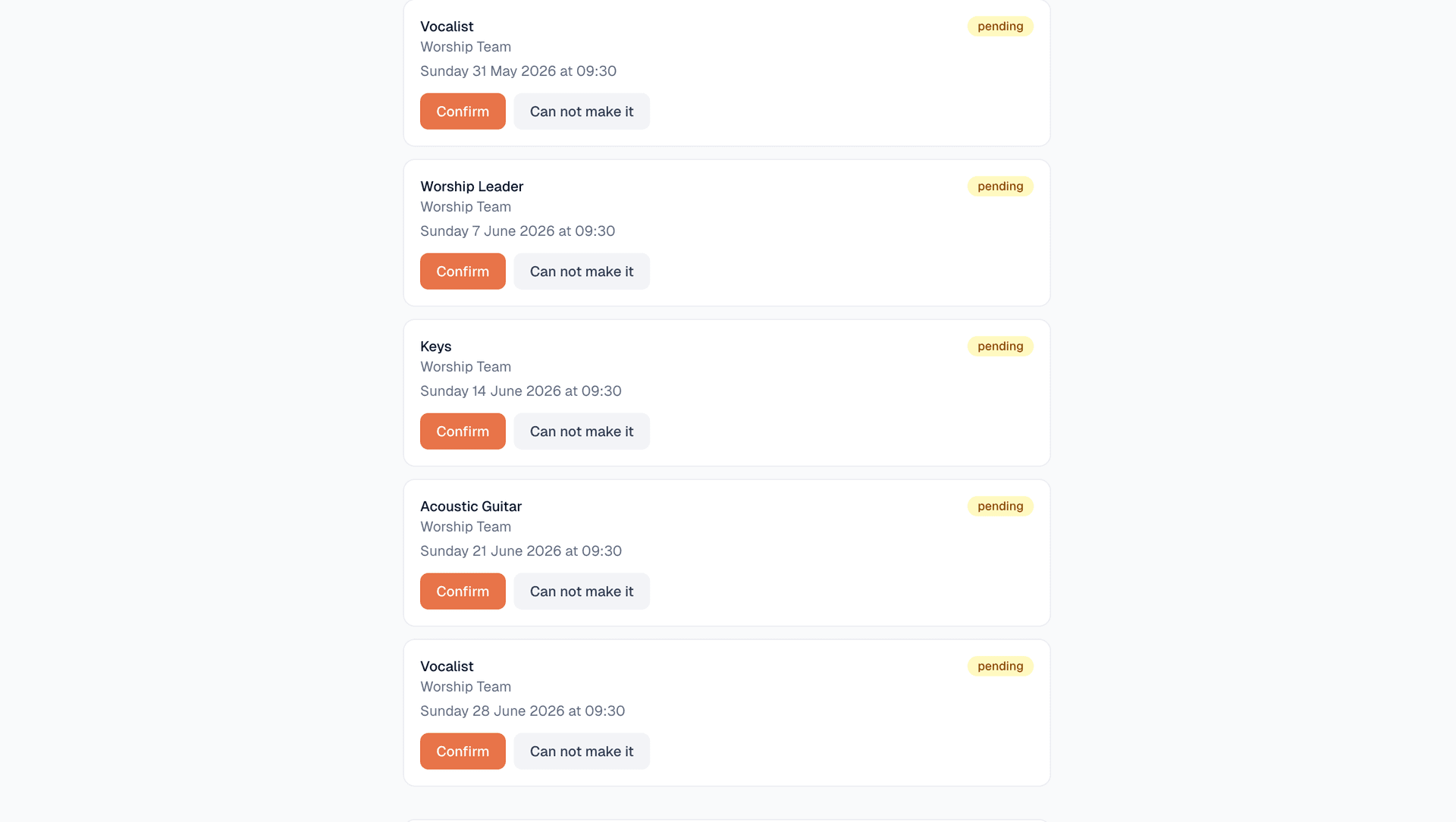
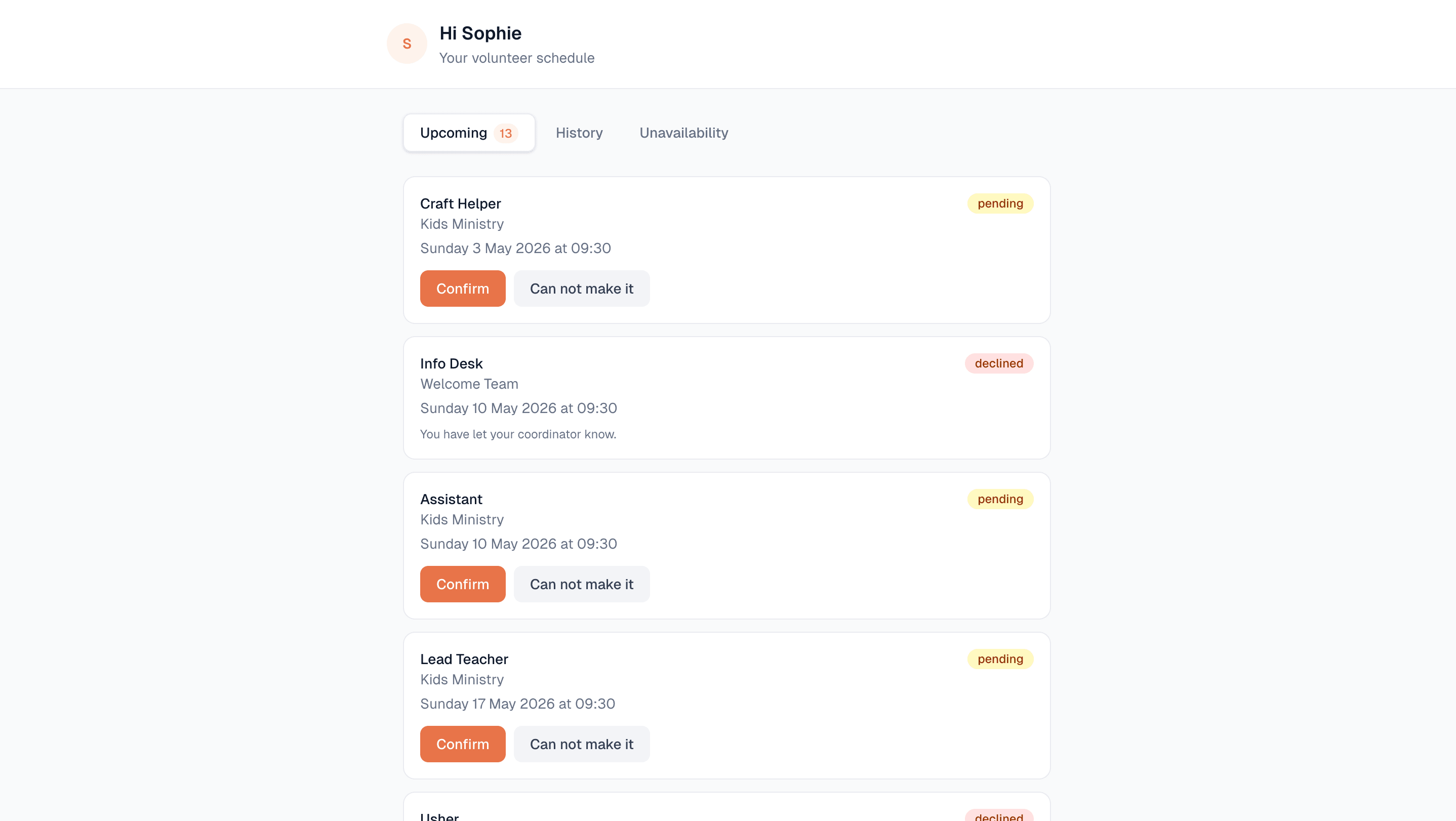
Every volunteer has a personal page (no login required) where they can see all their upcoming roster slots. They can also set dates they are unavailable so you do not accidentally roster them when they are away.
This means fewer "when am I on next?" messages. They can check themselves. And if they know they will be away for a few weeks, they can mark those dates in advance so you see it when building the roster.
Settings
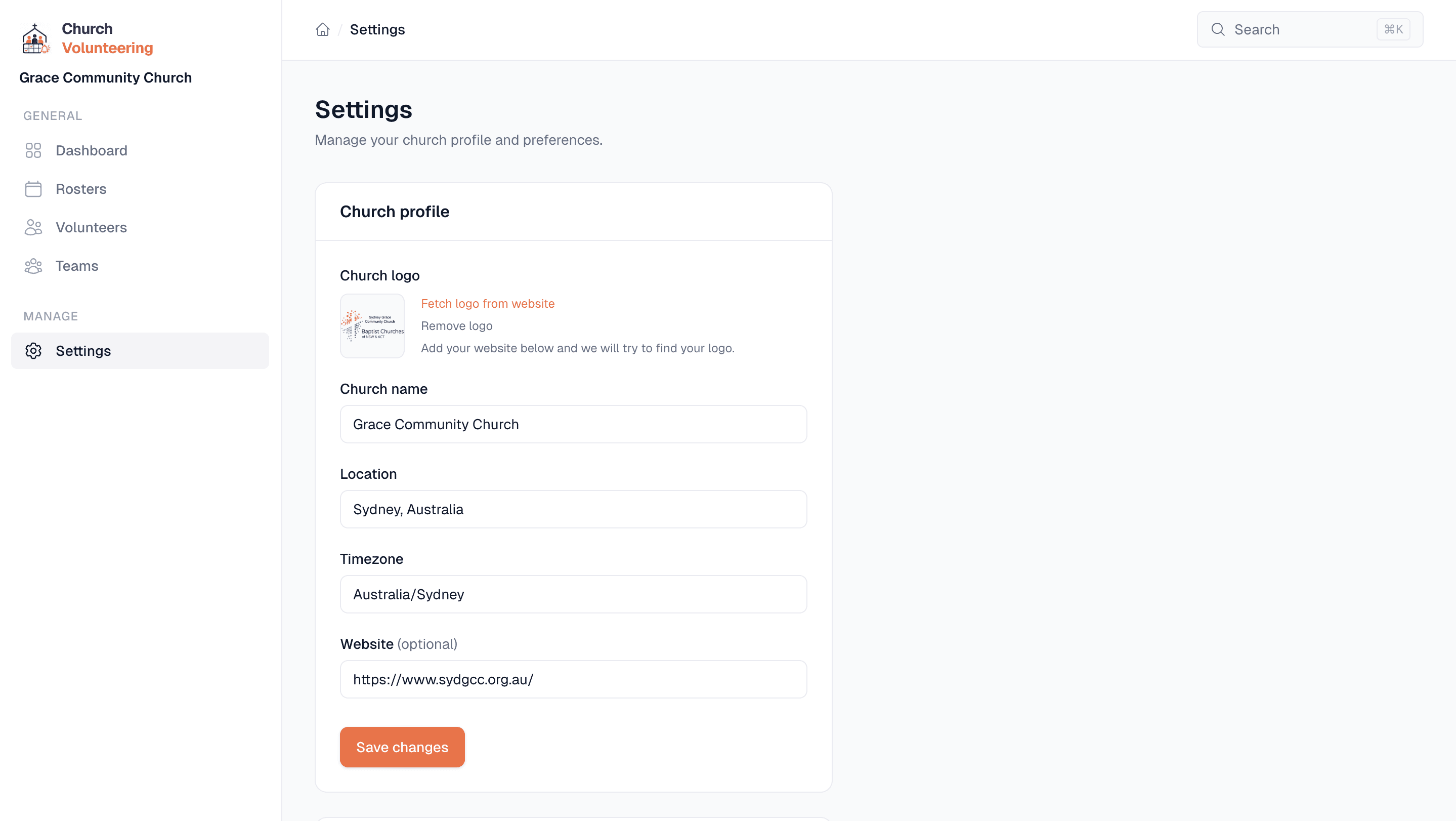
Set your church name, location, and timezone so everything lines up correctly. Upload your church logo so the emails your volunteers receive look like they come from your church, not some generic tool.
The settings page is simple because the app is simple. There are no 47 configuration options to wade through. Set it up once and get back to what matters.
Set up your church in 10 minutes. Add your volunteers. Build your first roster. Free, no credit card required.
